
Getting started
Requirements
Internals Viewer runs on Windows 10 version 2004 (build 19041) or later, and Windows 11.
It has been tested with SQL Server 2019 to 2025, whether connecting to an instance or opening a data file or backup.
A SQL Server connection needs the sysadmin role - see Permissions. Data files and backups only need read access to the files.
Installation
The easiest way to install Internals Viewer is to get it from the Microsoft Store.

To install manually see Installation.
Connecting
When the application opens, its first tab, Internals Viewer, shows the Start page with the three ways to open a database - a SQL Server instance, the data files of a detached or offline database, or a full backup. The sidebar has a page for each - SQL Server, Data Files and Database Backup - with Settings at the bottom.
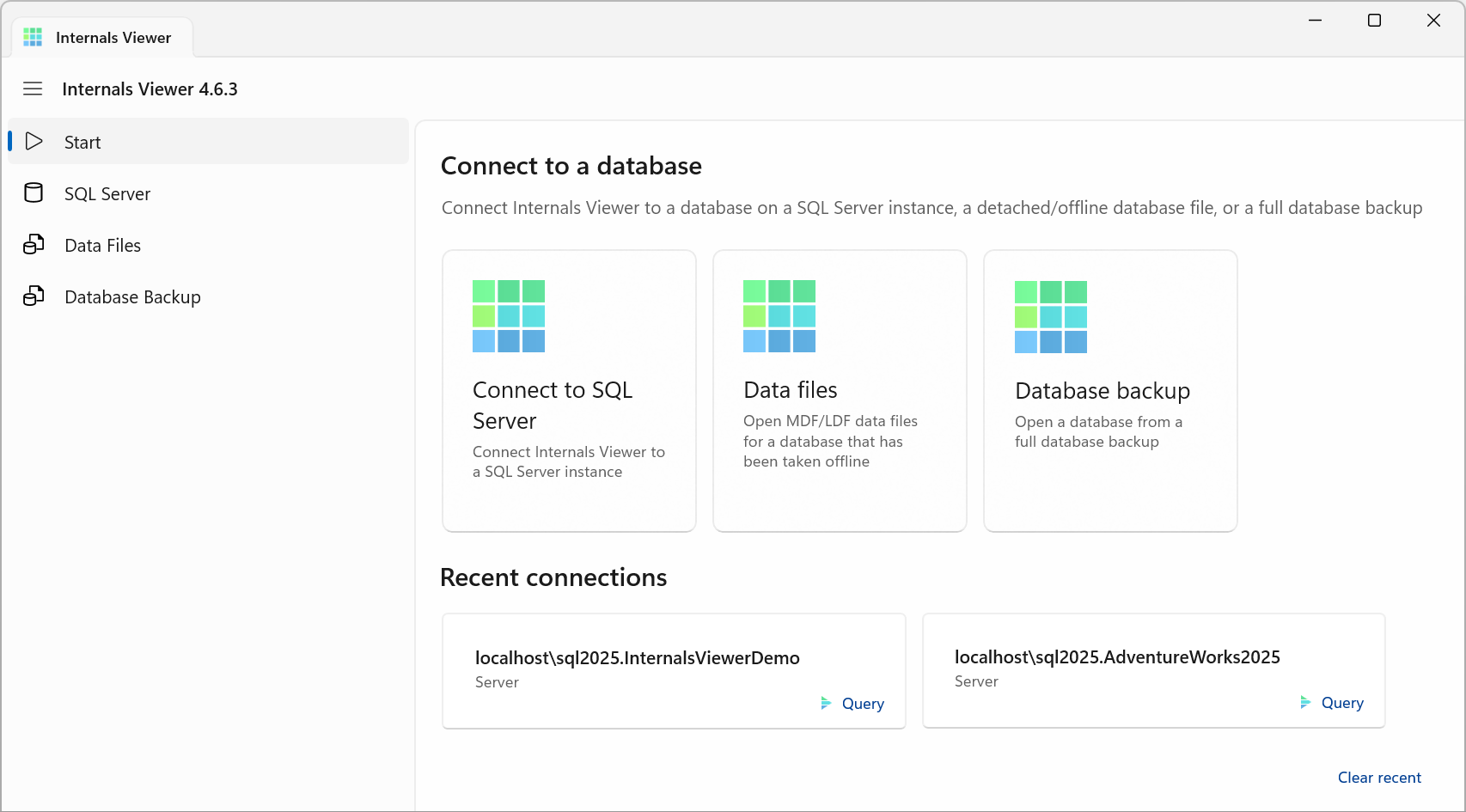
Each database opens in a tab of its own, named after the database for a SQL Server connection, or after the file it was opened from - the .mdf, or the first backup file.
Recent connections
The Start page lists Recent connections - click one to open it again. A SQL Server entry also has a Query link, which connects and opens a Query tab straight away. Clear recent empties the list.
A SQL Server Authentication or Active Directory Password connection keeps its password with the entry, encrypted with Windows data protection (DPAPI) so that only your Windows account can read it, and reconnects without asking. You are only asked for the password again when there is none stored or it cannot be decrypted. If the password has changed since, the reconnect fails with a login error - connect once from the SQL Server page to replace the entry.
SQL Server
To connect to a SQL Server instance:
- Click Connect to SQL Server on the Start page, or SQL Server in the sidebar
- Set Instance Name to the name or network address of the instance
- Choose the Authentication - Windows Authentication, SQL Server Authentication or Active Directory Password, with a User Id and Password for the last two
- For Database either type the name of the database, or open the drop down to list the databases on the server
- Click Connect
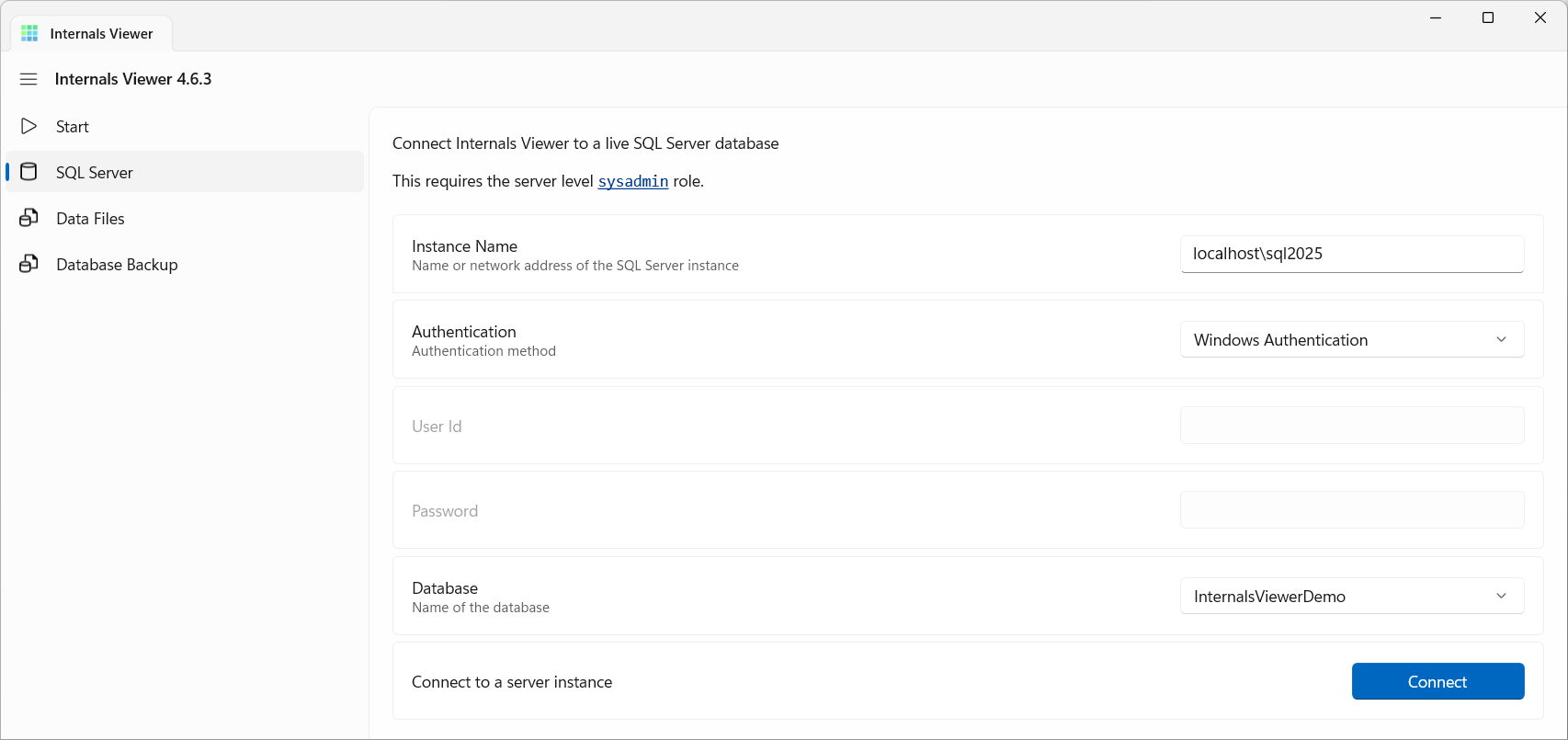
The connection is tried first, and any error is shown before the database opens. The instance, authentication, database and user id are filled in again the next time the page opens.
Connections are made with TrustServerCertificate=true, so they are encrypted but the server's certificate is not validated.
Without sysadmin
A login without sysadmin can connect, but the database fails to load on its first page read with "Error reading page 1:9" - the boot page, the first page Internals Viewer reads. The server's version and whether the login is sysadmin are written to the Diagnostic log on each connection.
Data files
A database can also be opened from its data files, with no SQL Server instance involved. The database has to be detached from SQL Server or set offline - SQL Server holds the files of an online database open.
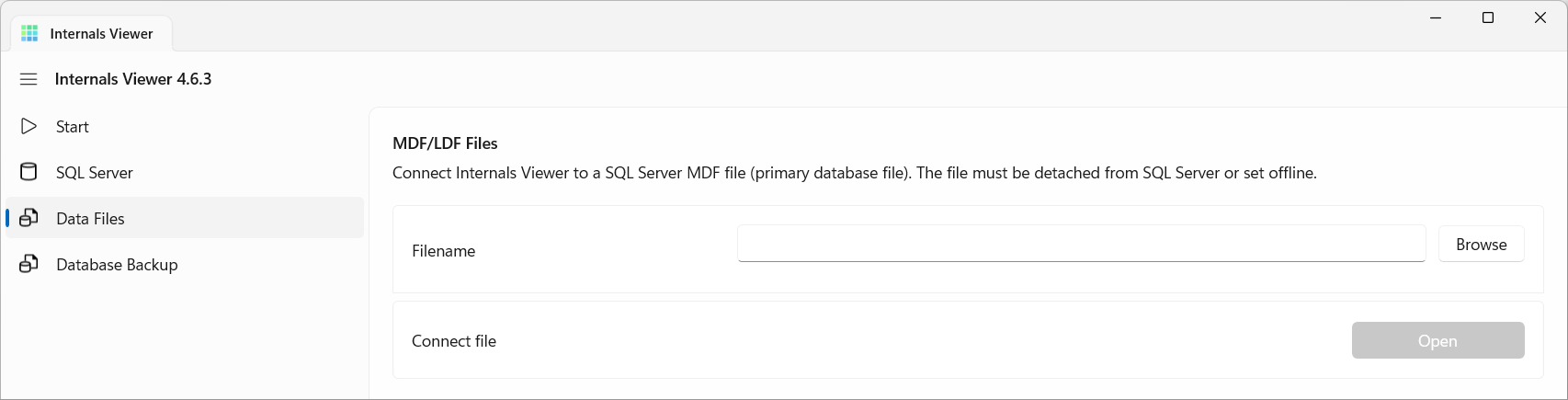
Click Data files on the Start page or Data Files in the sidebar, Browse to the database's primary .mdf file, and click Open.
- Secondary files - a database with more than one data file opens its
.ndffiles automatically. Each is looked for at the path recorded in the database, then under the same name in the.mdffile's folder, and checked to be the right file before it is used. If any cannot be found, the error lists them. - The log - the transaction log (
.ldf) is not read. Everything comes from the data files. - Read-only - the files are opened read-only, and stay open until the database's tab is closed. Close the tab before attaching the database to SQL Server again.
See How the database is loaded for how a database is read from its files.
Database backup
A database can be opened straight from a full backup (.bak), without restoring it.
Click Database backup on the Start page or Database Backup in the sidebar, Add files to choose the backup, and click Open. Clear empties the list, and the cross beside a file removes it.
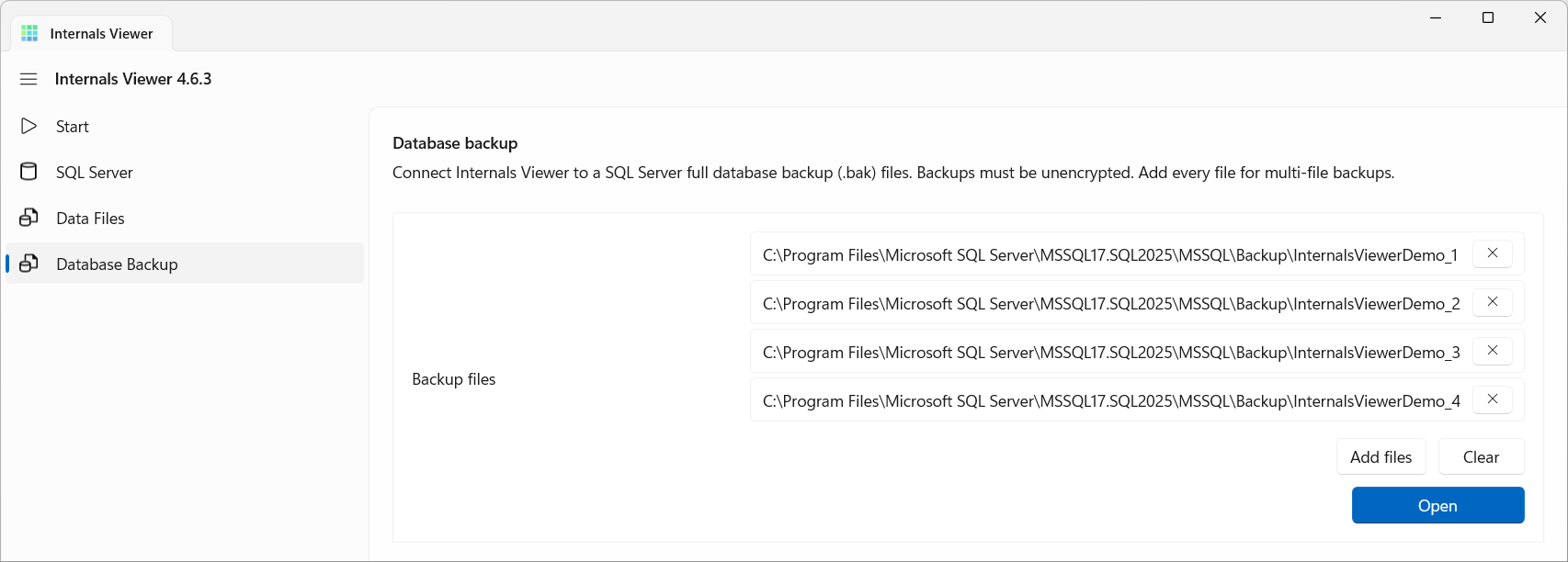
- Striped backups - a backup written to several files needs every file of the set. Add them all, in any order. A missing file, a file from a different backup, or two copies of the same file are reported before anything is read.
- Mirrored backups - add one copy of each file.
- Compressed backups - backups taken
WITH COMPRESSIONopen too, with the default algorithm or withZSTDfrom SQL Server 2025.
Opening a backup reads through the whole of it to find where each page is, so a large backup takes a while, and a compressed one longer, since it is decompressed along the way. Progress is shown below the files a step at a time, and anything that stops the backup opening is shown at the top of the page under Unable to open backup.
There are limits to what can be read:
- Unencrypted only - an encrypted backup cannot be read.
- The first backup set - a file holding several backups, appended with
NOINIT, always opens the first. - Full backups - a differential backup only holds the pages changed since the last full backup, so the rest of the database cannot be read from it. A page that was not allocated when the backup was taken is not in the backup either, and opening one says so.
- No log applied - a backup copies pages while the database is in use, then the log needed to bring them into line. Internals Viewer shows the pages as they were copied and does not apply that log, so a page changed during the backup can be slightly out of step.
See How the database is loaded for how pages are found inside a backup.
Live connections only
The Query view needs a live server to trace queries, and the Buffer Pool overlay reads the server's buffer pool, so both are only available for SQL Server connections.