
Simulation
The Simulation pane runs a query's plan again, one step at a time, so each operator can be watched doing its work - which page a scan reads next, which row a seek lands on, what goes into a hash table, when a sort finally lets its rows go. It reads the database's real pages and works through the real rows.
Internals Viewer has its own implementation of SQL Server's operators, built to behave the way SQL Server's do - the same pages read and the same rows produced - so that the behaviour can be seen from the inside. It is not SQL Server's own code, and SQL Server has no way to pause a query between rows, which is why this is a simulation rather than a recording. For what SQL Server itself did, see the Timeline, or Full Trace for every call it made.
Opening a simulation
A simulation needs a plan, so run the query first. Then:
- View > Simulation, or the Simulate button on the SQL Editor's command bar, simulates the operator selected in the Execution Plan, or the whole statement if nothing that can be simulated is selected
- Right-click an operator in the Execution Plan, or its bar in the Timeline's Plan band, and choose Simulate
The simulation covers the chosen operator and everything beneath it. There is one Simulation pane per Query tab, so simulating another operator replaces it, and running the query again rebuilds it for the same operator. Captured events are not needed, but when there are some, stepping through page reads moves the Timeline's playhead with it.
An operator can only be simulated if every operator beneath it can be - see Supported operators. If one cannot, the pane does not open.
Layout
The command bar runs the simulation:
- Step - takes one step
- Run - steps continuously at the Speed set beside it, and reads Pause while running. The arrow beside it has Run to end, which runs straight to the end without showing each step, and reads Stop while it does
- Reset - goes back to the start
- Speed - how long each step takes during a run. The far right is as fast as possible
- Operator - the operator the last step belonged to
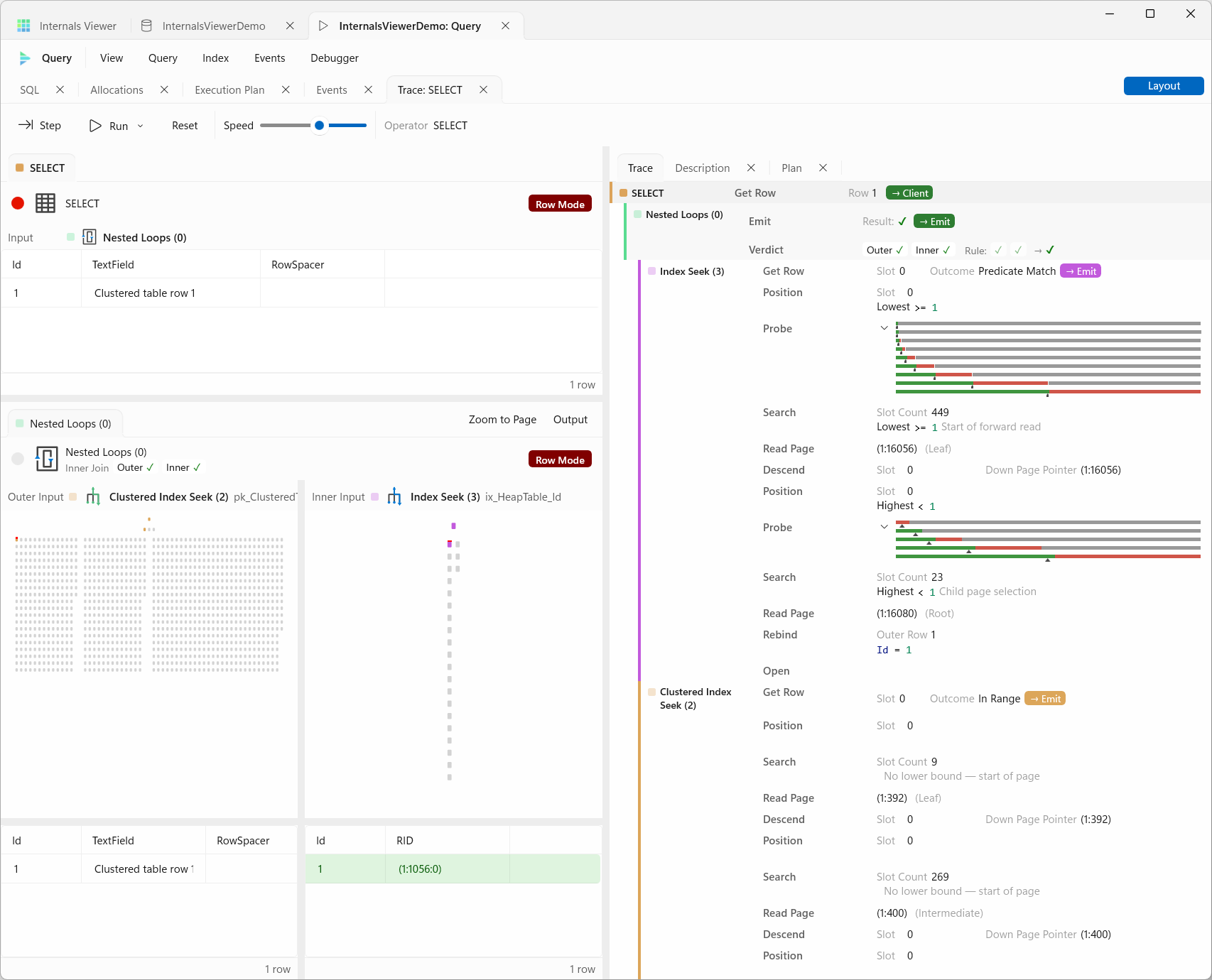
The simulation has its own panes, which dock like the rest of the Query view:
- An operator tab for each operator, showing its inputs, its state and what it is working on - see Operators
- Steps - the steps taken so far, newest at the top
- Description - what the selected operator does, its properties, its phases and the simulation's counters
- Plan - the part of the plan being simulated. Clicking an operator selects it
- Batch tabs - the current batch, for a simulation with batch mode operators
Layout on the tab strip switches between a nested layout, where each operator's tab sits above its children's as in the plan, and a flat one with every operator in one tab group. The choice is remembered.
Stepping
| Key | Action |
|---|---|
| F5 | Run / Pause |
| Shift + F5 | Run to end / Stop |
| Ctrl + Shift + F5 | Reset and run |
| Ctrl + Alt + Pause | Pause |
A step is one thing an operator does - read a page, compare a row, emit a row to its parent. In a simulation with batch mode operators, Step runs to the next batch instead, since a batch is the unit batch mode works in. There is no step back - Reset and run again to see something twice.
The Steps tab lists the steps as they happen, each indented by its operator's depth in the plan and marked in its colour, with the operator's name on the first of each run of its steps. Clicking that name selects the operator. Repeated steps fold into one row with counters - Get Row, Build, Probe, Compare, Accumulate, Get Batch and so on - and a hash build or probe adds a strip showing how the rows are landing across the buckets. The rest are single steps with their detail:
- Page reads - Read Page, labelled root, intermediate, leaf or heap, then Search, Probe and Descend as a seek works down the tree, with a bar showing which half of the page each binary search step ruled out
- Rows - Get Row with its outcome, such as Predicate Match, No Match or Ghost, Range End and Next Page
- Heap scans - Read IAM, Read PFS, Check PFS, Next Extent and Skip Page, as a heap is read in allocation order
- Joins - Compare and Verdict, with a badge saying which side matched and the rule the join type applies
- Columnstore - Open Row Group, Eliminate Segment, Open Segment, Open Dictionary, the compressed data filter and Aggregate Pushdown
- Stopped - why an operator finished, such as Exhausted, Range Ended or Row Goal Met
Only the most recent steps are kept, so on a long run the earliest drop off the bottom.
Operators
Each operator tab's header has a breakpoint, the operator's name, a Batch Mode or Row Mode pill and, for a scan or seek, Current Page/Slot - a link that opens that page in the Query view with the row selected. A join's header names the join type, with the rule it applies to the outer and inner rows.
What fills the tab depends on the operator:
- Joins - the two inputs side by side, Build Input and Probe Input for a Hash Match or Outer Input and Inner Input otherwise. A Hash Match shows its Hash Table under the build side, and the rows held from each side are shown as they wait to be matched
- Sort - the rows it has collected, which it holds until its input runs out
- Stream Aggregate - the aggregates for the current group
- Hash Match (Aggregate) - its hash table, or a local and a global table in batch mode
- Segment - the current key against the row's key, which is how it spots a group boundary
- The statement - the Results, as the rows reach the client
- Scans and seeks - a visual of what is being read, see below
Most tabs also have the operator's state - how many rows a Sort has collected, a Top's target, a Filter's rows read and filtered, the memory a hash table is using - and an Output pane with the row it last produced. Toggles on the tab strip show the Output and the Hash Table.
The visual follows the read:
- An index is drawn as its tree, with the pages visited in the operator's colour and the current row picked out. Each reseek fades the earlier descents, so the path a correlated seek takes on each outer row stands out
- A heap is drawn on the allocation map, with the object's extents outlined and the current page bordered in red - including the pages skipped and the PFS pages read on the way
- A columnstore is drawn as its row groups and segments, with eliminated segments marked and the current batch drawn across the segments it came from
Zoom to Page follows the page being read. A Hash Match's Buckets can be changed to see how the rows spread over more or fewer buckets.
Breakpoints
The circle at the left of an operator tab's header sets a breakpoint, turning red when set. Run and Run to end stop just after that operator's next step, and a single Step ignores it. Breakpoints are kept by Reset, but not when the simulation is rebuilt.
Batches
Batch mode operators pass batches of rows rather than single rows. A Batch tab follows the batch an operator owns - a Columnstore Index Scan or a batch mode Hash Match (Aggregate) - with its number, how many of its rows are still selected, how many of its vectors are pure, and Complete once it is used up.
- Data Vectors - the batch's columns as stored, each slot in hex, with pure vectors marked and unselected rows greyed. Click a cell to see what the slot holds - an inline value, a null, a dictionary reference or a reference into deep data - and the value it decodes to
- Selection Vector - the rows still selected
- Deep Data - the values too wide for a slot, held beside the batch
- Compressed Filter - once a predicate has been evaluated on the compressed data, the bitmap of which dictionary entries qualify
See the Batch Mode Internals article for how batches are laid out.
Description
The Description tab says what the selected operator does and whether it streams or blocks, then lists its properties - its keys, predicate, seek ranges, row goal, memory and the entry point it starts from.
Phases breaks the operator's work into its stages - a Hash Match's Build, Probe and Compare, a Sort's Collect, Sort and Emit - and Run query to here beside a phase runs the simulation until the operator reaches it.
Counters are totals for the whole simulation so far - range seeks, pages read, comparisons, rows read and output, ghosts skipped and leaf links followed.
Supported operators
| Mode | Operators |
|---|---|
| Row mode | Nested Loops, with a RID Lookup or a correlated seek or Key Lookup on the inner side |
| Merge Join and Hash Match joins | |
| Hash Match (Aggregate), but not a partial aggregate | |
Stream Aggregate - COUNT(*), COUNT, COUNT_BIG, MIN, MAX, SUM, AVG and ANY | |
Top with a fixed row count, not PERCENT or WITH TIES | |
Sort, including Distinct Sort and Top N Sort, not WITH TIES | |
| Concatenation, Compute Scalar, Filter, Segment | |
Sequence Project - ROW_NUMBER, RANK and DENSE_RANK | |
| Index Scan, Clustered Index Scan, Index Seek, Clustered Index Seek, Table Scan, RID Lookup, Key Lookup | |
| Batch mode | Columnstore Index Scan - with segment elimination, the compressed data filter, predicates, aggregate pushdown and the delete bitmap |
| Filter, Compute Scalar and Hash Match (Aggregate) |
Where the plan switches between batch and row mode, an adapter is added to convert one to the other. Other batch mode operators are simulated in row mode behind an adapter.
Parallelism, spools, Bitmap, Adaptive Join, window aggregates, Constant Scan, Assert and the data modification operators cannot be simulated, so a parallel plan can only be simulated beneath its exchanges.
WARNING
A residual predicate the simulation cannot translate is skipped rather than stopping it, so the simulation can return rows SQL Server filtered out. The plan's annotations mark these with Untranslated Predicate, and the Description says so.
How this works
The operators are iterators in the Volcano model, as SQL Server's are - each asks its child for a row, and rows are pulled up the tree one at a time. Each iterator is written so it can stop between steps and report what it just did, which is what the Steps tab shows. Pages are read through the same page reader as the rest of the application, so the simulation sees the database exactly as the Page Viewer does.
The implementation is in src/InternalsViewer.Execution in the repository.